This document outlines the steps to set up AppSamurai on Tenjin. Follow the procedure below to add AppSamurai as a marketing channel, create a campaign, retrieve your tracking link, and activate the install callback.
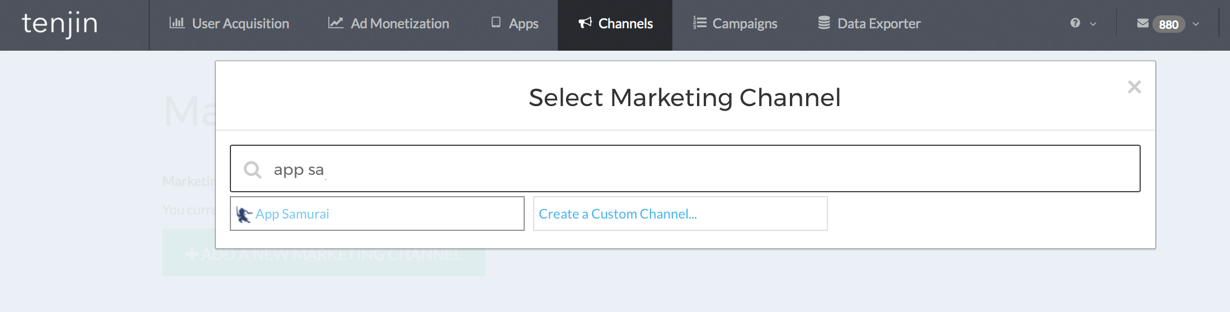
1. Add AppSamurai as a Marketing Channel
- Navigate to the "Channels" tab in your Tenjin dashboard: https://www.tenjin.io/dashboard/channels
- Click "Add a new marketing channel."
- Select "AppSamurai" from the available options.
2. Create a Campaign for AppSamurai
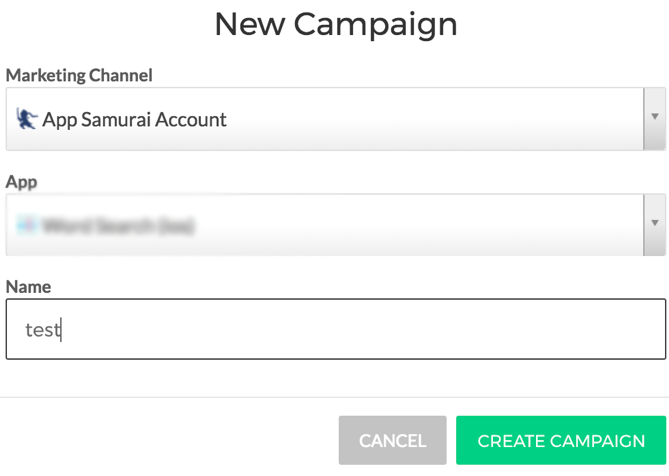
- Go to the "Campaigns" tab.
- Configure the campaign settings as follows:
- "Marketing Channel": Select your "AppSamurai Account."
- "App": Choose your mobile application.
- "Name": Enter a descriptive name for your campaign.
3. Retrieve Your Tracking Link
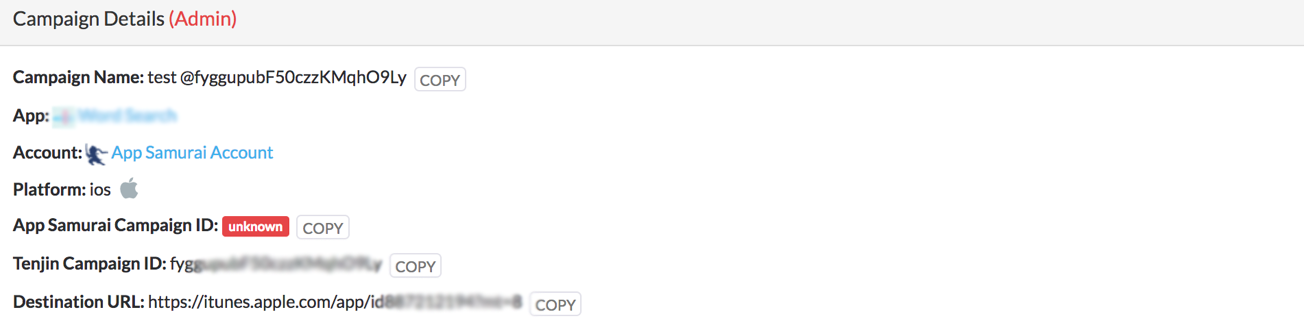
- After creating the campaign, you'll see a summary of the campaign details, including your unique tracking link.

4. Activate the Install Callback
- Important: Before launching your campaign, activate the install callback on the same campaign page. This is a one-time setup per app, so you won't need to repeat it for subsequent campaigns.

Additional Information
- Your dedicated account manager can provide you with daily campaign reports via email, including key metrics like spend, installs, and clicks.
- To ensure efficient communication, please include "adops@appsamurai.com" in the CC field of your campaign-related emails. You can also send all campaign requests directly to this email address.