This guide walks you through connecting AppSamurai as an ad partner inside your Branch dashboard, so Branch can attribute installs and in-app events back to your AppSamurai campaigns and forward those conversions to AppSamurai through postbacks.
Before you start
- You have access to a Branch dashboard with the Performance (Ads) product enabled.
- The Branch SDK is already integrated in your iOS and Android app, and you are tracking the events you want to optimise on.
- You have an active AppSamurai campaign. If any of the account details below are missing, your AppSamurai account manager can provide them.
1. Enable AppSamurai as an ad partner
- In the Branch dashboard, open Ads and select Partner Management from the sidebar.
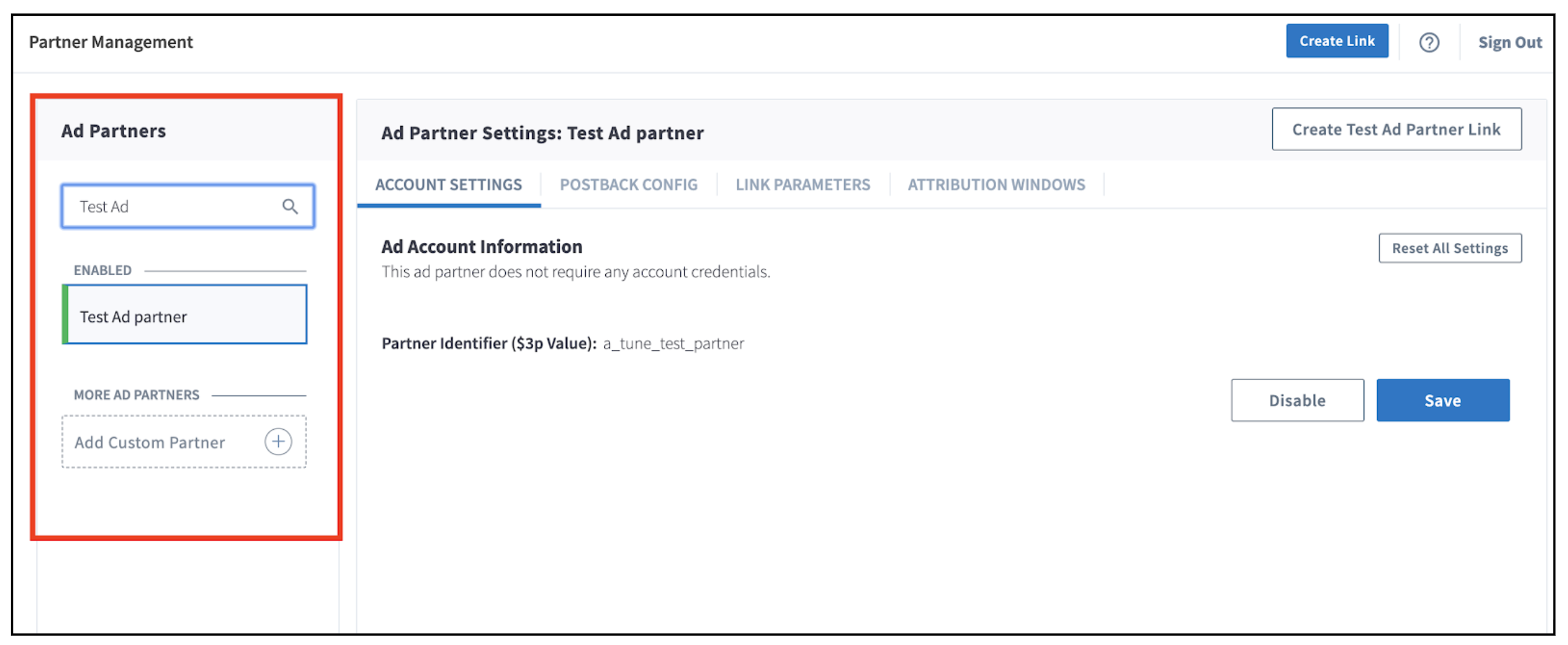
- Search for AppSamurai in the Ad Partners search box, select it from the results, and click Save & Enable.
2. Add your account credentials
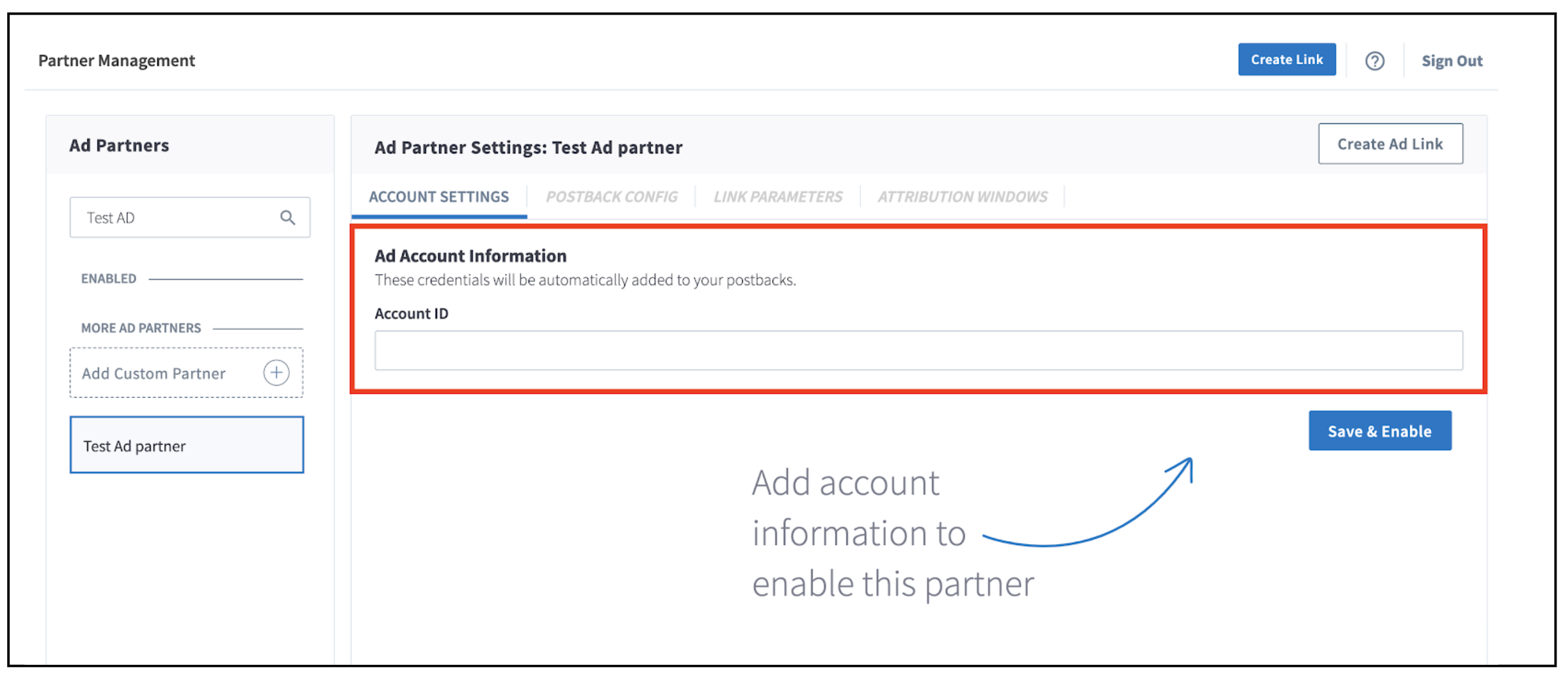
Some partners require account credentials before they can be enabled; others do not. If Branch prompts you for an Account ID (or similar), enter the value your AppSamurai account manager gave you. These credentials are added to your postbacks automatically. Click Save & Enable to finish.
3. Confirm the postbacks
- Open the Postback Config tab for AppSamurai. Basic postbacks for events such as
INSTALLandPURCHASEare switched on automatically when you enable the partner. - Review the event list and enable any additional events you want AppSamurai to receive, for example
OPEN,ACHIEVE_LEVEL,COMPLETE_TUTORIALorCOMPLETE_REGISTRATION, then click Save.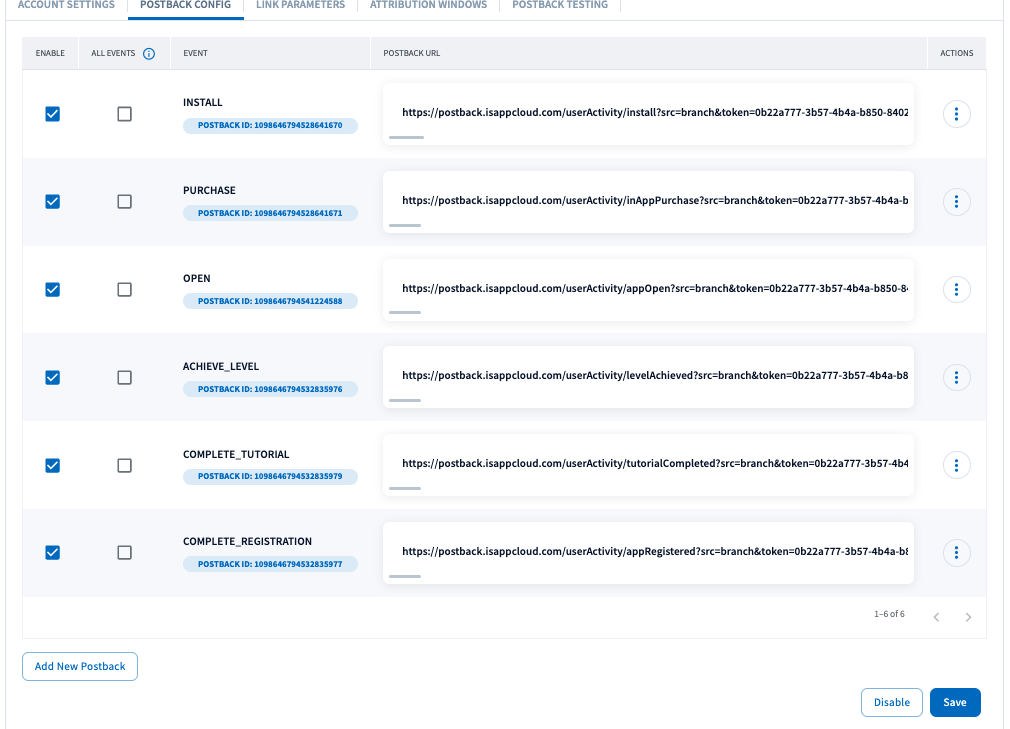
To confirm a postback is wired up correctly, use the Postback Testing tab, which verifies both the postback and your partner credentials before you go live.
4. Create your AppSamurai ad link
AppSamurai is a non-SAN partner, so Branch needs one of its ad links in your campaigns to attribute conversions. From the AppSamurai partner settings, click Create Ad Link to generate the link, then share it with your AppSamurai account manager to run in your campaigns.
5. Verify data is being sent
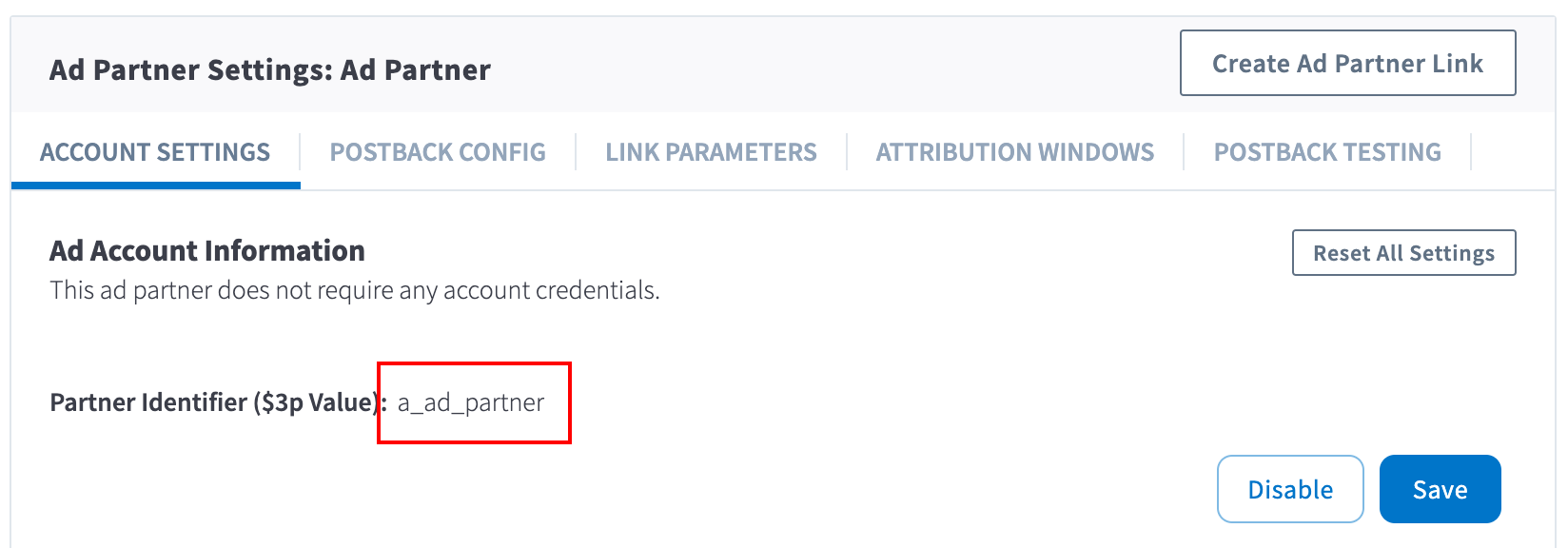
- Find your AppSamurai partner key: open the Account Settings tab for AppSamurai in Partner Management and copy the Partner Identifier ($3p Value).
- Go to Liveview > Webhook Records and add a filter of ad partner (3p) equals your AppSamurai key. Add the Webhook Response Code column to read the result, plus the IDFA/AAID and Click ID columns to confirm the macros are being populated.
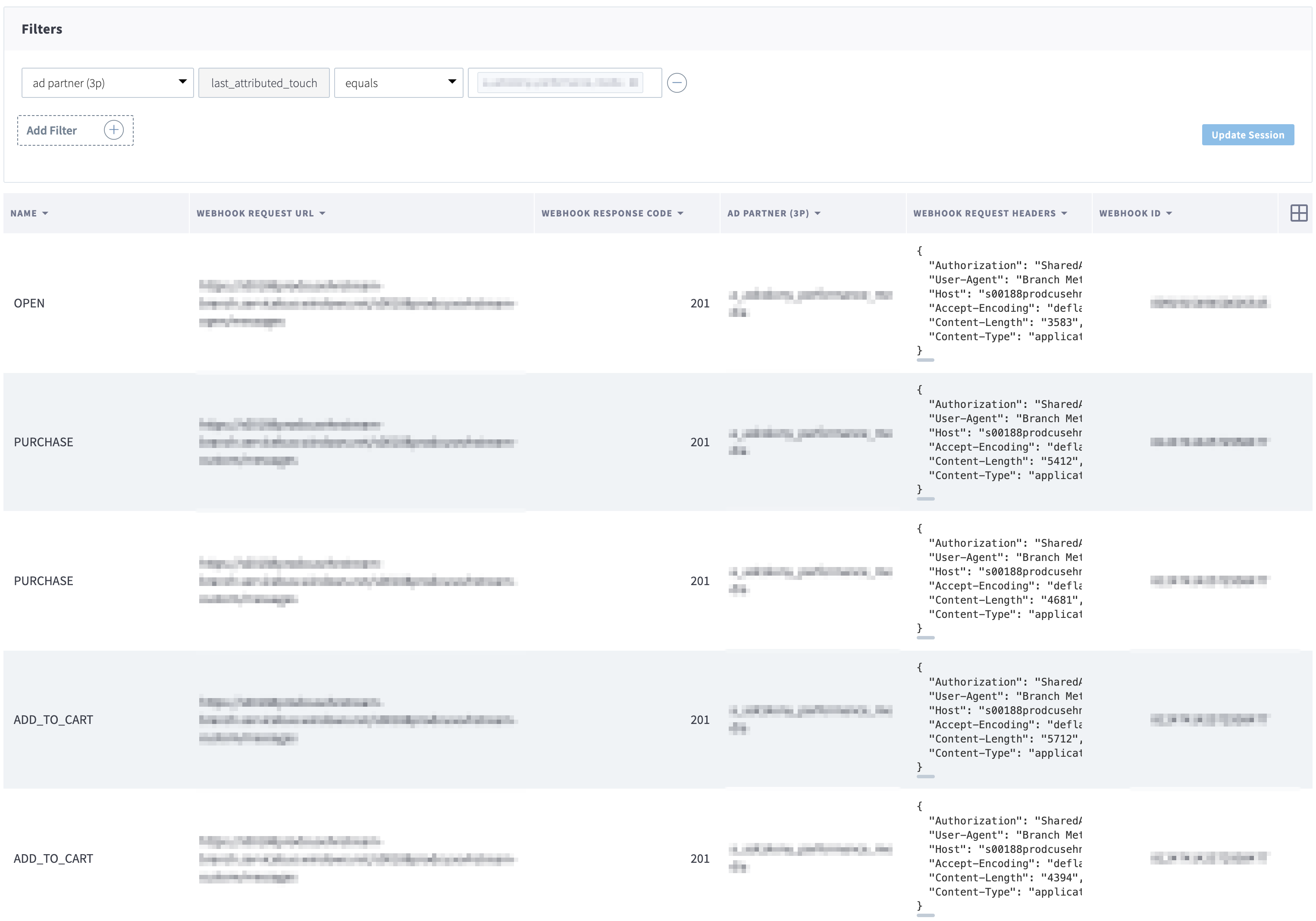
A response code in the 200 range means the postback was delivered successfully; a 400-range code means there was an error worth reviewing.
Give it time
Data can take a little while to move through Branch's attribution system and reach AppSamurai. If a test conversion has not appeared after about 30 minutes, revisit the steps above to check nothing was missed. For anything specific to your account, contact your AppSamurai account manager or email adops@appsamurai.com.
You can also refer to Branch's own Ad Partner Integration Guide for the latest partner-side details.